Soundboard
Trigger custom sounds to keep your audience engaged during live streams
Soundboard is one of GEMTOK's core engagement features that lets you trigger custom sounds to keep your audience entertained and engaged during live streams.
With Soundboard, every like, gift, comment, or follow can play a fun sound effect, making your live more interactive and lively.
What is Soundboard?
Soundboard allows you to upload and manage custom audio clips that can be played:
- Manually by you during the stream
- Automatically via triggers (Premium) - e.g., when someone sends a specific gift, comment, or like
- Across all platforms - TikTok, YouTube, Twitch, Kick, Douyin (Premium unlocks all platforms)
It's perfect for creating hype moments, funny reactions, or rewarding loyal viewers.
Key Features
1. Custom Sound Library
Upload your own MP3 files. Organize them into categories for quick access. Build your own library of memes, effects, and alerts.
2. Manual Trigger
Click any sound button to play it instantly on your stream. Great for reacting to chat in real-time.
3. Auto Trigger (Premium)
Connect Soundboard to GEMTOK's Triggers system. Automatically play sounds when:
- Viewer sends a gift (e.g., Rose = applause sound)
- Specific keyword in chat (e.g., "lol" = laugh sound)
- New follower, like milestone, share event
Free Tier: Manual only. Premium: Unlimited auto triggers.
4. Multi-Platform Sync
One Soundboard works for all connected platforms. No need to set up separately per platform.
5. Volume & Overlap Control
Adjust volume per sound and control whether sounds can overlap or queue.
How to Connect
Soundboard needs to be connected to your live stream to receive events for auto triggers.
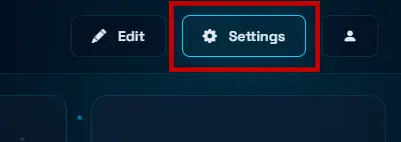
Open Soundboard and click the Settings icon to open the connection modal.
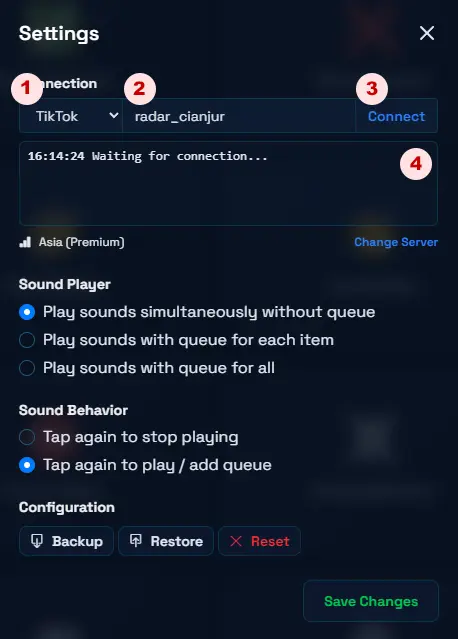
In the connection modal:
- Select your platform (TikTok, YouTube, Twitch, etc.)
- Enter your username or live URL
- Click Connect to start connection
- Check connection history if you have connected before
For detailed platform-specific connection guides (TikTok username vs YouTube URL), see How to Connect.
How to Use
Editing Sounds
- Go to Soundboard dashboard at gemtok.live
- Click Edit to enter edit mode
- Select the sound you want to edit
- Choose from library or upload your audio file. Set name, and optional trigger.
- Save to your library
Playing Sounds
- Manual: Just click the sound pad during live
- Auto (Premium): Select your sound and set auto trigger: Event = Gift/Comment, Action = Play Sound.
Best Practices
- Keep sounds short (1-5 seconds) for better engagement
- Use different sounds for different gift tiers
- Don't spam - set cooldown per sound (e.g., 5 seconds)
- Test volume before going live
Free vs Premium
| Feature | Free | Premium |
|---|---|---|
| Manual Trigger | ✅ | ✅ |
| Auto Trigger | ❌ | ✅ |
| Platforms | ❌ | All Platforms |
Upgrade to Premium via Membership to unlock auto triggers.
Tips to Keep Audience Engaged
- Create inside jokes with custom sounds for your community
- Let viewers unlock sounds via gifts
- Combine with Text-to-Speech and Overlays for full production
- Use Soundboard together with Stream Studio Actions
Troubleshooting
- Sound not playing? Check browser autoplay permission and system volume. See Sound Not Played
- Auto trigger not working? Ensure you are Premium and trigger is enabled
- Connection failed? See Stream Connection