TikTok LIVE Studio
TikTok LIVE Studio is TikTok's official desktop streaming software for Windows. It lets you stream GEMTOK games and overlays directly to TikTok without needing OBS.
This guide covers:
- Downloading & installing TikTok LIVE Studio
- Setting up Window Capture for GEMTOK Classic Games & Mini Games
- Adding Source Link for GEMTOK Stream Studio overlays
- Configuring stream settings
Download & Install TikTok LIVE Studio
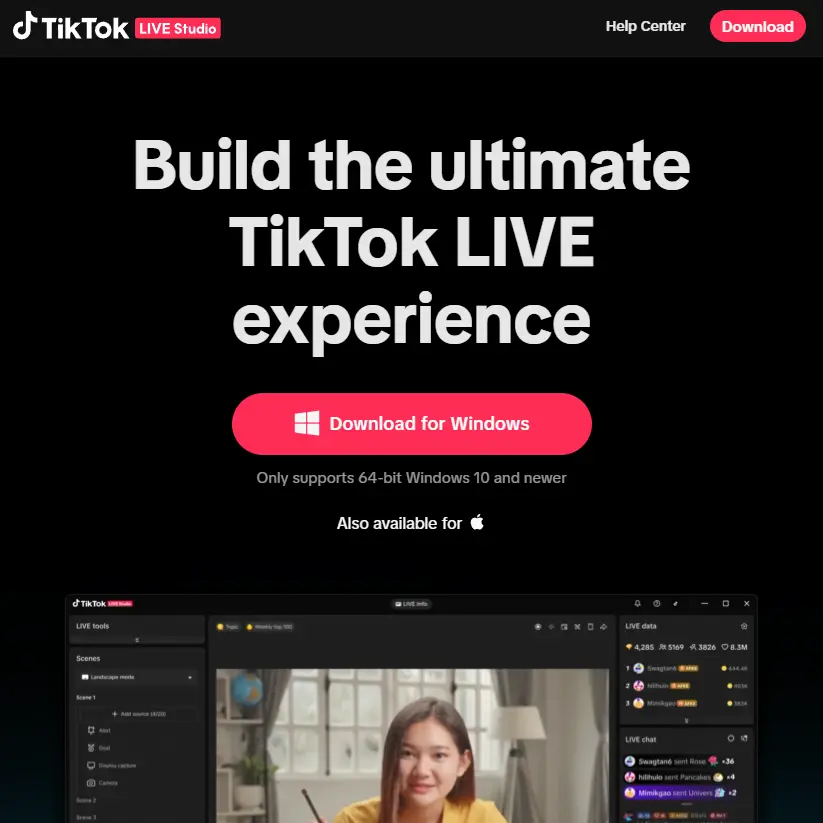
Run the Installer
Open the downloaded installer. The setup will:
- Select Language — Choose your preferred language.
- Installation Path — Leave as default or choose your folder.
- Install — Click Install and wait for completion.
Log In
When you launch TikTok LIVE Studio for the first time:
- A QR code will appear on screen.
- Open TikTok on your phone and scan the QR code via your profile menu or the scan feature.
- Confirm the login on your phone.
You're now logged in and ready to set up your stream.
Adding GEMTOK Games via Window Capture
GEMTOK Classic Games and Mini Games run in your browser (Chrome, Edge, etc.). Use Window Capture to capture the browser tab or window.
Launch Your GEMTOK Game
Open the GEMTOK dashboard in your browser and launch a Classic Game or Mini Game. The game will open in a new browser tab or window.
For best results, open the game in a separate browser window (not just a tab) — this makes it easier to select in TikTok LIVE Studio and avoids capturing your entire browser UI.
Add a Window Capture Source
- In TikTok LIVE Studio, look at the Sources panel.
- Click the + button and select Window Capture.
- Name it something like
GEMTOK - Classic GameorGEMTOK - Mini Game. - In the properties:
- Window: Select your browser window (e.g.,
Chrome.exeormsedge.exe) from the dropdown. - Capture Cursor: Uncheck unless you want the mouse visible.
- Window: Select your browser window (e.g.,
- Click Add source.
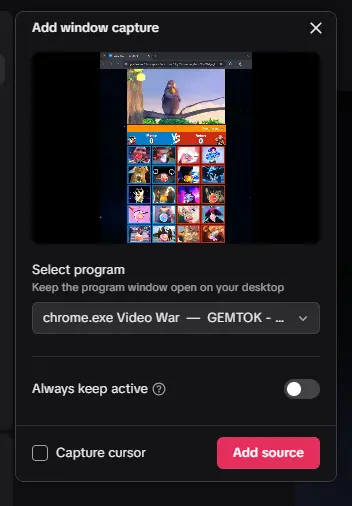
Resize & Position
After adding the source, you can:
- Drag the border in the preview to resize the game window.
- Right-click the source → Transform → Fit to screen for a quick full-canvas fit.
If you're running both a Classic Game and a Mini Game simultaneously, add two separate Window Capture sources — one for each game window.
Adding Stream Studio Overlays via Source → Link
GEMTOK Stream Studio provides browser-based overlays (chat, event list, goal bars, leaderboards, etc.). In TikTok LIVE Studio, you add these using Link instead of Browser Source.
Open Stream Studio
In the GEMTOK app, navigate to Stream Studio and open the Overlays section. You'll see a list of available overlays with their URLs.
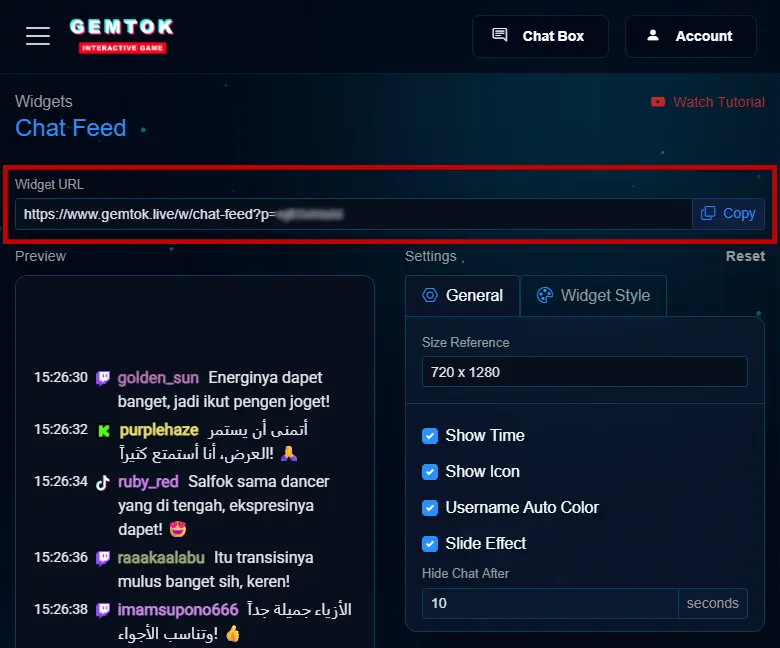
Copy the Overlay URL
Each overlay has a unique URL. Click the Copy button next to the overlay you want to add (e.g., Chat Overlay, Event List, Goal Bar).
Overlay URLs are unique to your account. Do not share them publicly — anyone with the URL can view your stream overlay data.
Add a Link in TikTok LIVE Studio
- In TikTok LIVE Studio, click the Add source button in the Sources panel.
- Select Link.
- Name it (e.g.,
GEMTOK - Chat Overlay). - In the properties:
- URL: Paste the overlay URL you copied.
- Width: Your canvas width.
- Height: Your canvas height.
- Click Add source.
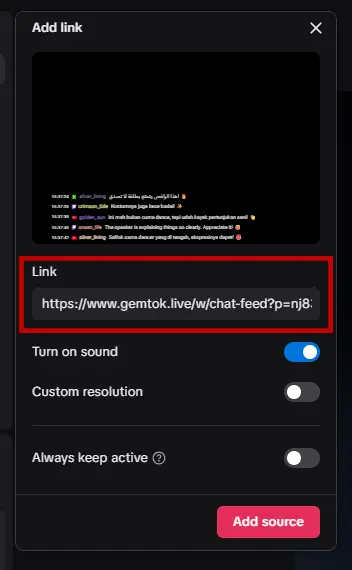
Position the Overlay
In the preview, drag the overlay to the desired position. Common placements:
- Chat Overlay — Bottom-left or bottom-right corner.
- Event List — Bottom or side edge.
- Goal Bar — Top or bottom center.
- Leaderboard — Side panel.
Overlays often have transparent backgrounds — they will layer on top of your game capture automatically. Make sure the Source Link is positioned above your game capture in the Sources list.
Add Multiple Overlays (Optional)
Repeat the steps above for each overlay you want. Common combinations:
- Chat Overlay + Event List + Goal Bar
- Chat Overlay + Leaderboard
- Sound Alert overlay (visual component)
Each overlay gets its own Source Link entry in TikTok LIVE Studio.
Scene Organization Tips
Organizing your sources makes streaming smoother:
Scene: GEMTOK Stream
├── 📺 GEMTOK - Classic Game        (Window Capture)
│   └── 🎨 GEMTOK - Chat Overlay    (Source Link)
│   └── 🎨 GEMTOK - Event List      (Source Link)
│   └── 🎨 GEMTOK - Goal Bar        (Source Link)
├── 🎤 Microphone                    (Audio Input Capture)
└── 🔊 Desktop Audio                 (Audio Output Capture)
Source order matters! Sources listed higher in the list appear on top in the preview. Keep overlays above game captures so they're visible.
Troubleshooting
| Problem | Solution |
|---|---|
| Window Capture shows black screen | Run TikTok LIVE Studio as Administrator (right-click → Run as administrator). Or try switching the capture method in source properties. |
| Source Link not showing overlay | Check the URL is correct. Remove and re-add the Source Link. |
| Overlay appears behind game | Move the Source Link above the Window Capture in the Sources list. |
| Audio not working | Check that Desktop Audio is enabled in the audio mixer. |
| Stream lag / dropped frames | Lower the bitrate to 2500 Kbps or reduce resolution to 720p. |
Next Steps
- Learn more about Stream Studio Overlays
- Explore Classic Games and Mini Games
- Set up Actions & Triggers for automation