How to Connect
Complete guide on how to connect Gemtok to various streaming platforms including TikTok, Douyin, YouTube, Twitch, and Kick
Overview
Gemtok connects to your live stream across multiple features (Stream Studio, Soundboard, Mini Games, Classic Games) and platforms. The connection process is consistent regardless of which feature or platform you use.
Prerequisites:
- An active Gemtok account
- A stable internet connection
- Your live stream must be already running on the target platform before connecting
Stream Studio
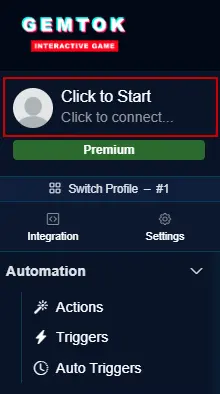
Click the connection button (highlighted in the image above) to open the connection modal.
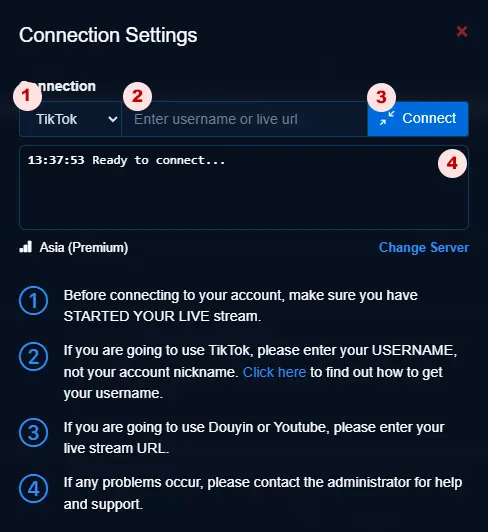
The connection modal contains:
- Platform selector — Choose your streaming platform (TikTok, Douyin, YouTube, Twitch, Kick)
- Input field — Enter your username or live URL (format depends on platform)
- Connect button — Click to initiate the connection
- Connection history — View previously connected streams
Mini Games
Open any mini game from the Mini Games menu.
Click the connection button inside the game interface to open the connection modal.
Follow the same connection steps as Stream Studio (select platform → enter credentials → connect).
Soundboard
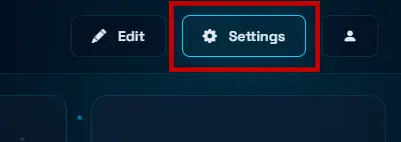
Open the Soundboard feature and click the settings icon (gear icon) to access the connection modal.
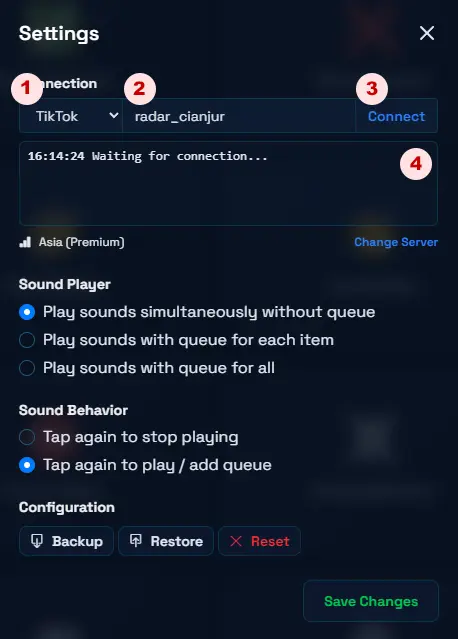
The connection modal shows:
- Platform selector — Choose your streaming platform
- Input field — Enter your username or live URL
- Connect button — Click to start the connection
- Connection history — Previously connected streams
Classic Games
Launch any classic game from the Classic Games menu.
Click anywhere on the game screen to bring up the connection modal.
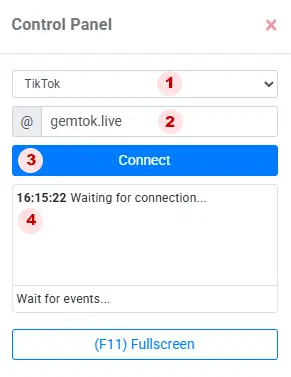
Follow the standard connection flow:
- Platform selector — Choose your streaming platform
- Input field — Enter your username or live URL
- Connect button — Click to start the connection
- Connection history — View past connections
Platform-Specific Guides
Each platform requires specific credentials. Below are the details for each.
Connect to TikTok
Credential type: Username (not nickname)
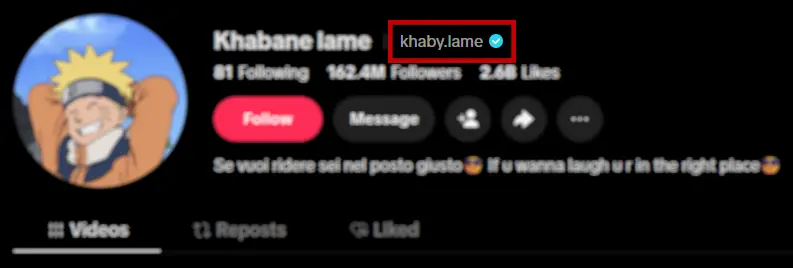
Finding your TikTok username on TikTok Desktop
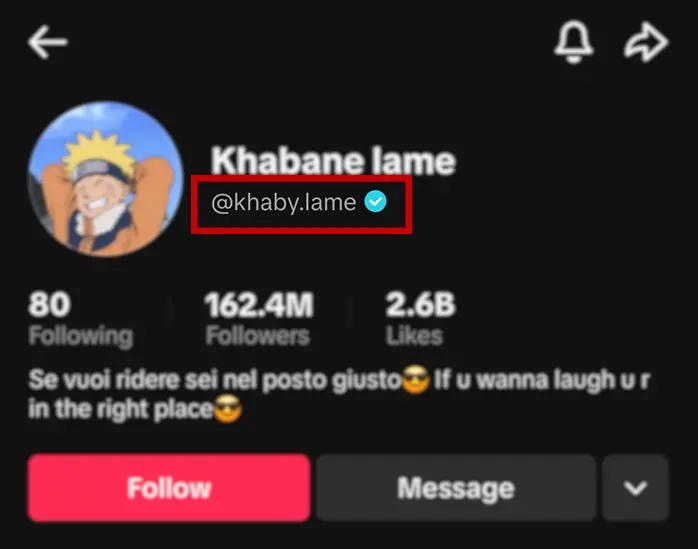
Finding your TikTok username on TikTok Mobile
Start your live stream first
You must be actively live on TikTok before connecting. Gemtok cannot connect to an inactive stream.
Find your username
Your TikTok username is the unique handle starting with @ (e.g., @yourname). This is not your display name/nickname — check your profile page to confirm.
Connect
Select TikTok as the platform, enter your username (without the @ symbol), click Connect, and wait for the status to show "Connected".
Tip: Connection typically takes 5–15 seconds. If it fails, verify your username and that your stream is still live.
Connect to Douyin
Credential type: Live URL
Start your live stream first
You must be actively live on Douyin before connecting.
Get your live URL
Open your Douyin live stream in a browser and copy the full URL from the address bar. It should look like:
https://live.douyin.com/414750639000
Connect
Select Douyin as the platform, paste your live URL, click Connect, and wait for confirmation.
Note: Douyin requires the full live URL, not just a username or room ID.
Connect to YouTube
Credential type: Live URL
Start your live stream first
You must be actively live on YouTube before connecting.
Get your live URL
Open your YouTube live stream and copy the URL from the address bar. It should look like:
https://www.youtube.com/watch?v=mkzxcm74sm9
Connect
Select YouTube as the platform, paste your live URL, click Connect, and wait for confirmation.
Note: Make sure the stream is public or unlisted — private streams cannot be detected by Gemtok.
Connect to Twitch
Credential type: Username (not nickname)
Start your live stream first
You must be actively live on Twitch before connecting.
Find your username
Your Twitch username is the unique handle in your channel URL (e.g., twitch.tv/yourusername). This is not your display name.
Connect
Select Twitch as the platform, enter your username, click Connect, and wait for confirmation.
Connect to Kick
Credential type: Username (not nickname)
Start your live stream first
You must be actively live on Kick before connecting.
Find your username
Your Kick username is the unique handle in your channel URL (e.g., kick.com/yourusername). This is not your display name.
Connect
Select Kick as the platform, enter your username, click Connect, and wait for confirmation.
Quick Reference
| Platform | Credential Type | Example | Where to Find It |
|---|---|---|---|
| TikTok | Username | yourname | Profile page (without @) |
| Douyin | Live URL | https://live.douyin.com/414750639000 | Browser address bar |
| YouTube | Live URL | https://www.youtube.com/watch?v=mkzxcm74sm9 | Browser address bar |
| Twitch | Username | yourname | Channel URL (twitch.tv/yourname) |
| Kick | Username | yourname | Channel URL (kick.com/yourname) |
Troubleshooting
If you encounter connection issues, check the following:
- Is your stream live? — Gemtok can only connect to an active live stream.
- Is the credential correct? — Use your username (not display name) for TikTok, Twitch, and Kick. Use the full live URL for Douyin and YouTube.
- Is your internet stable? — A weak connection may cause timeouts.
- Is the stream public? — Private/limited streams may not be detectable.
For detailed troubleshooting, see the Stream Connection Troubleshooting Guide.