Classic Games
Interactive classic games to play live with your community during streams
Classic Games is GEMTOK's collection of interactive games that you can play live with your community during streams. Classic Games are more nostalgic, competitive, and designed to boost viewer retention.
These games turn passive viewers into active players - viewers can join via chat commands, gifts, or likes.
What are Classic Games?
Classic Games are browser-based games integrated directly into GEMTOK that:
- Run as an overlay or separate window you can capture via OBS
- Allow viewers to participate through chat interactions
- Sync events across all connected platforms (TikTok, YouTube, Twitch, Kick, Douyin)
- Increase watch time and engagement metrics
The exact list of Classic Games updates frequently. Check your GEMTOK dashboard > Classic Games for the current catalog.
Why Use Classic Games?
1. Boost Engagement
Viewers stay longer when they can play. Games create natural talking points and hype moments.
2. Multi-Platform Play
One game session works for viewers from all platforms simultaneously.
3. Monetization Friendly
Link game actions to gifts:
- Gift = extra life, power-up, or vote
- Encourages gifting without being pushy
How to Connect
Classic Games needs to be connected to your live to receive chat events and player joins.
Open Classic Games from GEMTOK dashboard. Click anywhere on the game screen to show the connection modal.
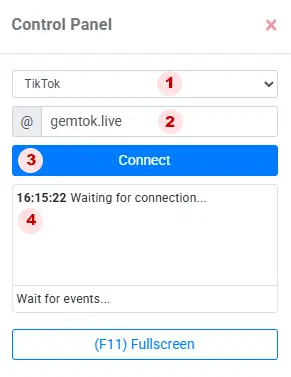
In the connection modal:
- Select your platform (TikTok, YouTube, Twitch, etc.)
- Enter your username or live URL
- Click Connect to start connection
- View connection history for quick reconnect
For platform-specific details (TikTok username vs YouTube live URL), see How to Connect.
How to Use
1. Choose a Game
Go to Classic Games section in GEMTOK dashboard. Browse available games and click to start.
2. Configure Game Settings
- Set colors, game duration, or win conditions
- Link gifts to in-game actions
3. Add to OBS
- Use Window Capture to capture the game
- Position it where it doesn't block your camera
4. Start the Game
- Click Start Game in GEMTOK
- Monitor players and moderate if needed
Integration with Other Features
Classic Games works best when combined with:
- Soundboard - Play victory/defeat sounds
- Text-to-Speech - Announce winners with TTS
- Overlays - Show leaderboard, player list
- Actions & Triggers - Auto-start game when gift goal reached
- OBS Studio Integration - Automate scene switching when game starts
Best Practices
- Start with simple games - Don't overwhelm new viewers
- Set clear rules - Pin rules in chat or overlay
- Rotate games - Keep content fresh, don't play same game every stream
- Engage non-players - Commentate the game for viewers who just watch
- Use cooldowns - Prevent spam joins
- Test before live - Run a private test to check performance
Troubleshooting
- Game paused? See Game Paused
- Connection issues? See Stream Connection
- Overlay not showing? Check OBS source and GEMTOK overlay settings
- Viewers can't join? Ensure chat connection is active and commands are correct
Ready to play? Open Classic Games in your GEMTOK dashboard and launch your first game with your community!