How to Stream
Using Phone Camera
This streaming method is often called "Screen-Shooting Stream". It's a popular alternative when your TikTok account doesn't have Mobile Gaming Streaming (direct screen-mirroring) access yet.
Since the target is interactive games (where viewers send gifts or comments to influence the game), camera stability and audio cable are key to keeping viewers engaged.
Hardware Setup
- Phone 1 (Game Phone): Runs the Gemtok game.
- Phone 2 (Stream Phone): Opens TikTok and goes Live using the rear camera.
- Tripod / Sturdy Phone Holder (Required) : Don't hold it by hand — the stream will shake. Use a ring-light tripod or a desk holder positioned overhead or in front of the Game Phone.
- Earphone / Headset Splitter (Optional but Recommended): Feeds game audio into TikTok clearly without background noise, or just turn up the Game Phone volume in a quiet room.
Camera Positioning
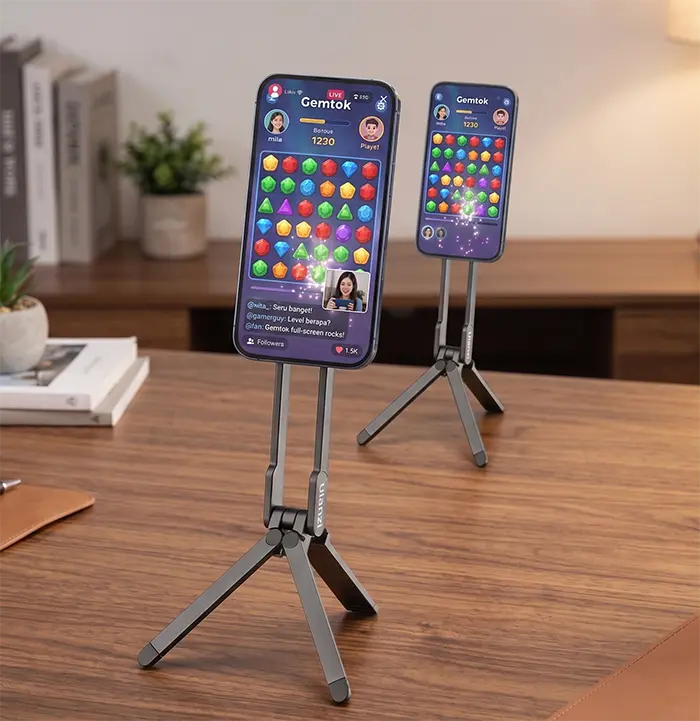
Goal: Make Phone 1's screen fill Phone 2's frame fully and clearly, with no shadows.
-
Adjust Game Phone (Phone 1) Brightness:
- Set brightness to 70-80% (not 100%, to avoid overexposure on camera).
- Disable Auto-Brightness and Screen Timeout (keep screen always on).
- Clean the screen to remove fingerprints.
-
Position Tripod & Stream Phone (Phone 2):
- Mount Phone 2 on the tripod with its rear camera facing Phone 1's screen. The rear camera always has much better quality than the front camera.
- Best Angle: Place Phone 2 slightly diagonal in front of Phone 1, or directly overhead. Adjust distance until Phone 1's screen fills the vertical TikTok Live frame.
-
Focus & Lighting:
- On Phone 2, tap the screen on the game area to lock focus (Focus Lock), then adjust exposure so text and visuals are readable.
- Avoid direct room light reflecting (glare) on the Game Phone screen. Tilt the Game Phone slightly if needed.
Going Live
- Open the interactive game on Phone 1.
- Open TikTok on Phone 2, tap [+], then swipe to the LIVE tab.
- Select Camera mode (not Mobile Gaming).
- Write an engaging Live title relevant to the interactive game (e.g., "Interactive Tap Game! Help Me Level Up with Roses").
- Choose the appropriate category (usually Gaming or Other Games).
- Tap Go LIVE.
Tips for Interactive Games
- Audio Interaction: Phone 2's mic will pick up room sound. Speak clearly so viewers know you're responding to gifts or comments in real-time.
- Use TikTok's Built-in Text: Before hitting "Go LIVE", add on-screen text explaining the game rules (e.g., "1 Rose = Jump", "1 Chili = Fire"). Place the text in the black area above or below the game screen so it doesn't cover the gameplay.
This method is effective for triggering TikTok's algorithm since it counts as active interaction — even with just 2 phones and a camera. Happy streaming!